Rank Math Plugin Review
Rank Math is the best and fastest WordPress SEO plugin that will help you rank better on search engines. It comes with powerful features like 1-click import/export, best on-page SEO suggestions, Content AI, 40+ AI Tools, AI Visibility, Powerful Schema Generator, 404 monitors, redirections, and much more.
Do you want to setup Rank Math SEO plugin properly on your WordPress website?
If yes, you are on the right webpage.
Rank Math is the most useful SEO plugin for every WordPress website if you want to appear in Google searches.
It is very important to configure the best SEO settings on your website to get the most from search engines.
In this detailed guide, you will learn how to setup Rank Math SEO plugin on your WordPress website and what some of the best Rank Math settings are.
Rank Math Review 2026

| Product | Rank Math SEO |
| Best For | Bloggers, Affiliate Marketers, & Professional Websites |
| Price | Starts at €113.14 (Including Tax) |
| Free Version | Available (Click here to Download) |
| Rank Math Lifetime Deal | Not Available |
| Money-back guarantee | 30 days |
Introduced in 2018, Rank Math is an SEO plugin that helps website owners optimize their content for search engines with lots of built-in suggestions and AI tools.
Rank Math is a freemium WordPress plugin, which means you can also use it for free with some limited features and buy the pro version for more premium features.
It enables anyone to optimize their content with the best built-in suggestions based on widely accepted best practices.
The Rank Math plugin analyzes the targeted keyword and helps you understand which changes you can make to rank your web content.
You can create SEO-optimized content with 40+ AI tools.
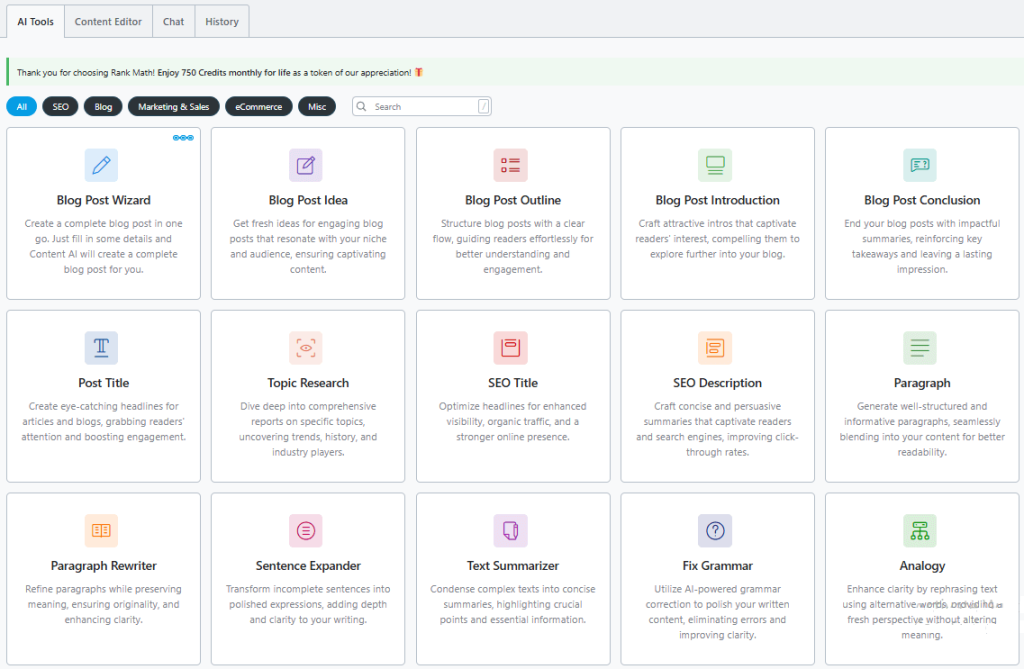
From generating ideas to optimizing for search engines, Content AI makes writing a breeze, streamlines your workflow, and enhances your SEO strategy.
Now, let’s get to the best SEO settings of Rank Math.
Also Read:- Semrush Free Trial 2026: Get a 7-Day Free Trial Account
Step 1: Install Rank Math
Installing the Rank Math plugin is as simple as installing any other WordPress plugin. Basically, you can install a plugin with two methods: by installing it from the WordPress directory or downloading the plugin’s zip file from the official website.
We’ll download it from the WordPress directory. Go to Plugin > Add new and then search Rank Math in the search bar.
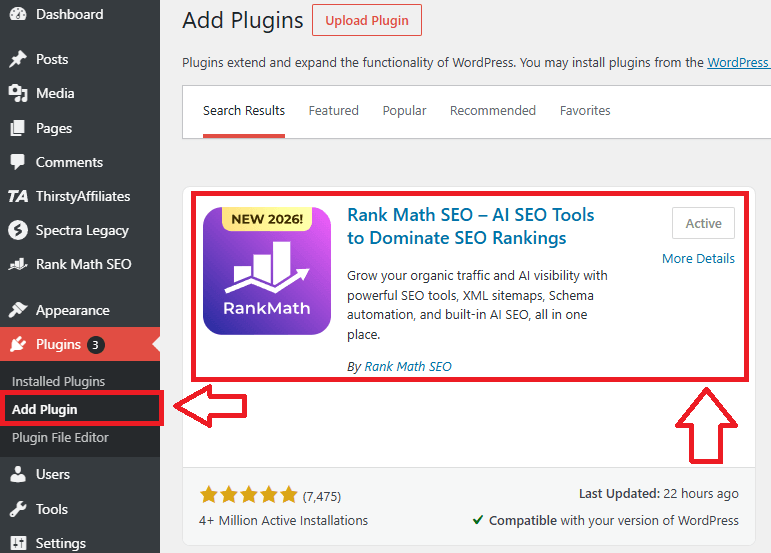
Install and activate the plugin on your website.
If you purchased the pro plugin, then download the Pro plugin’s zip file from the Rank Math website by logging in to your account.
After downloading the zip file, click Plugin > Add new and upload it.
Congrats, you have successfully activated the Rank Math SEO plugin.
Step 2 – Create Your Rank Math Account
After installing and activating the plugin, you will be automatically directed to the page where you will be asked to connect your account.
Click on the ‘Connect Your Account’ button, or you can also skip the step by clicking on the ‘Skip Step’ button.
I recommend that you connect your account by clicking on it.
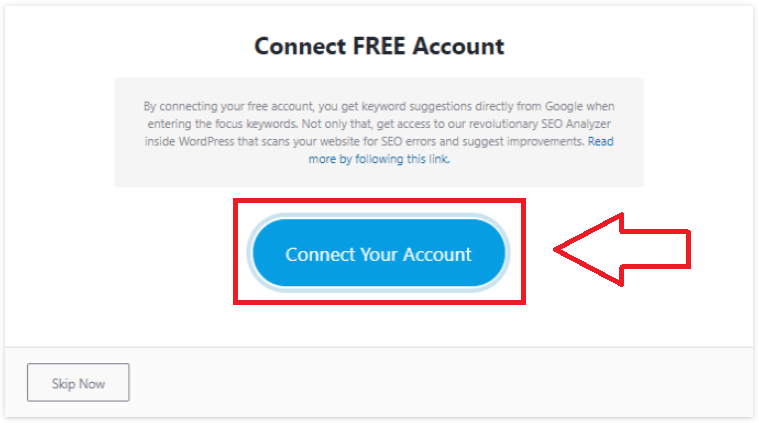
By clicking on it, you will be redirected to the page where you need to sign up for a Rank Math account.
Create your free Rank Math account or click on the ‘Ok Activate Now’ button to connect your existing account.
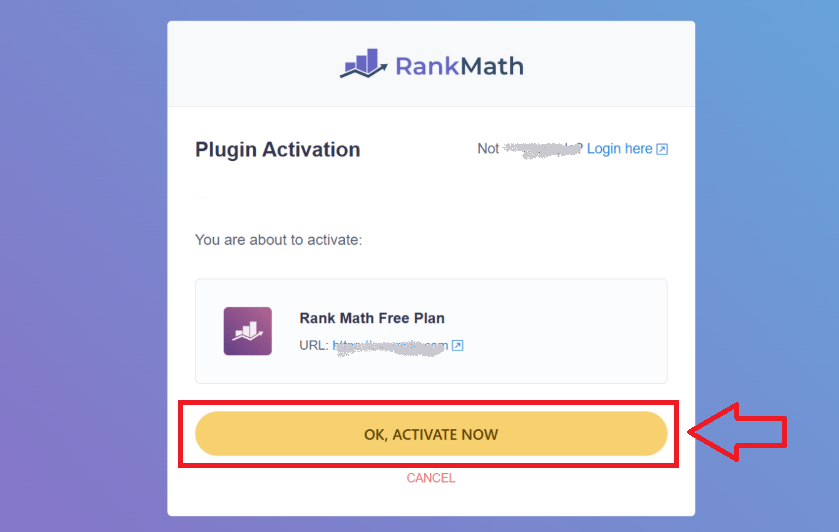
Now, you will be redirected to the setup wizard.
Step 3 – Run the Setup Wizard
If you have missed the setup wizard during the installation process, then you can navigate to it through WordPress Dashboard → Rank Math SEO → Dashboard → Setup Wizard.
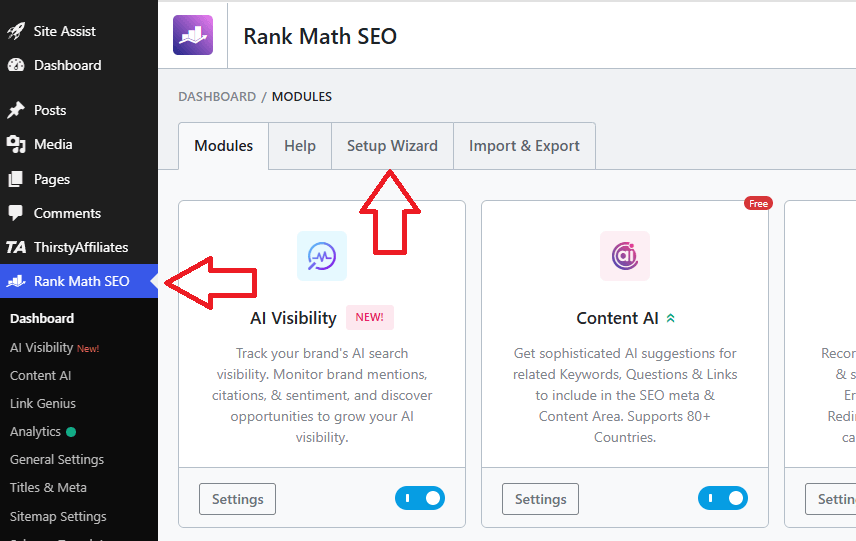
Once you click on the Setup Wizard, follow the next steps.
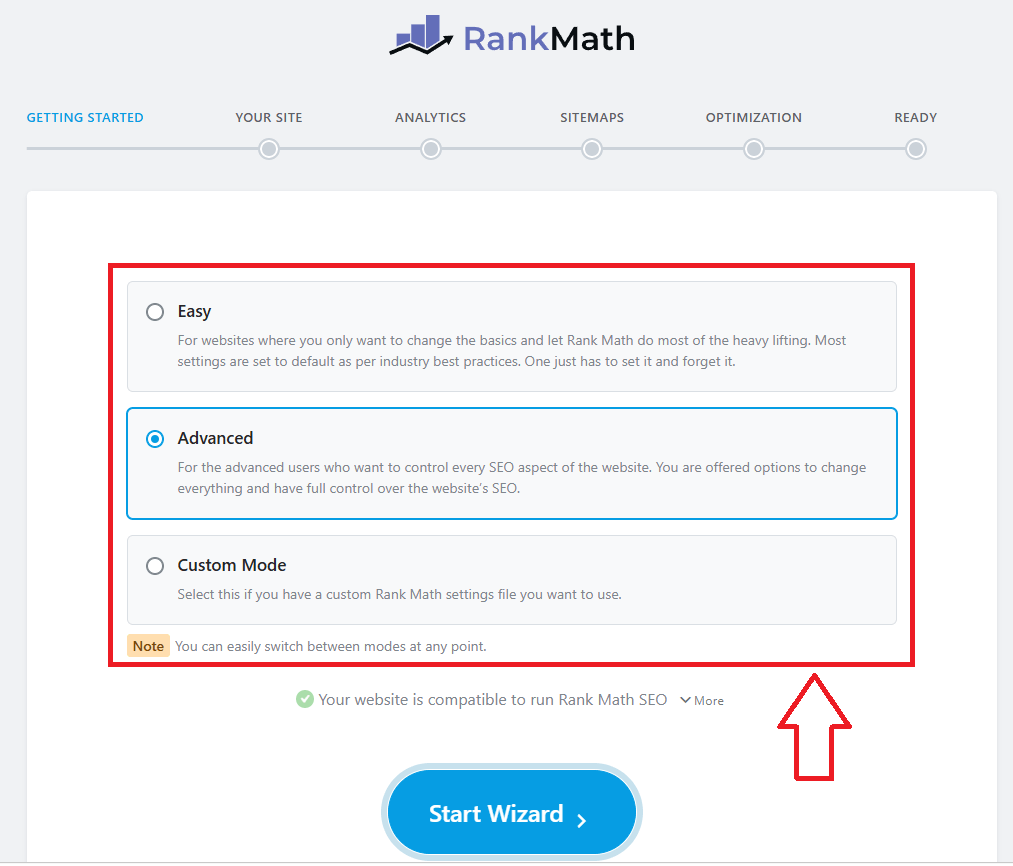
Rank Math currently offers you 3 modes:
- Easy Mode
- Advance Mode
- Custom Mode (Pro)
The easy and advanced modes are the most commonly used and not very different from each other.
Basically, Advanced Mode offers more options that have some additional advanced settings to configure.
Rank Math’s custom mode comes with the Rank Math Pro plan only. So, we will continue with the Advanced Mode by clicking on the Start Wizard.
Website Type
You need to provide some information about your website, like website type, website name, and website logo, etc.
We will discuss each step below.
Rank Math is a: Here you need to choose which type of website you are operating, like a personal blog, news site, community blog, etc.
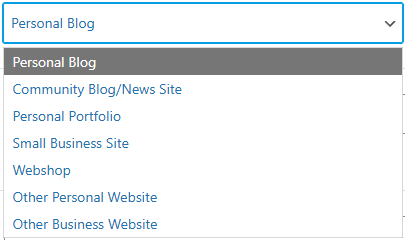
All these options can be classified into 2 types — Personal or Business.
Personal – Personal Blog, Personal Portfolio & Other Personal Sites.
Business – Community Blog/News Site, Small Business Site, Webshop & Other Business Sites.
Selecting the right option here will enable Rank Math to add the proper metadata, which Google can use in the Knowledge Graph to determine if this website represents a person or a business.
Website Name: Site names help Google identify websites in search, which helps users with identification. Google identifies a site name using the website structure. Data type, and in that, Google looks for the name property.
So this goes as follows: This property exists in Rank Math SEO — you can enter the name of the site here.
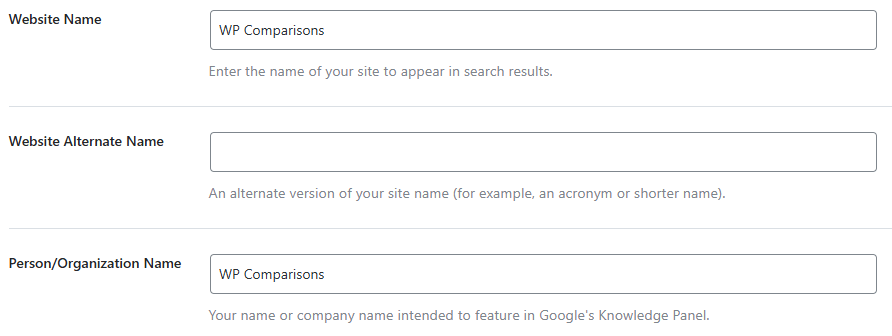
In the website alternative name, you’ll need to enter an alternate name i.e., an acronym or a potentially shorter name for your website.
In the person/organization name, you need to enter your name or the company name that you wish to feature in Google’s Knowledge Panel.
Logo for Google: Here is where you will have to upload the logo of your business or your personal website.
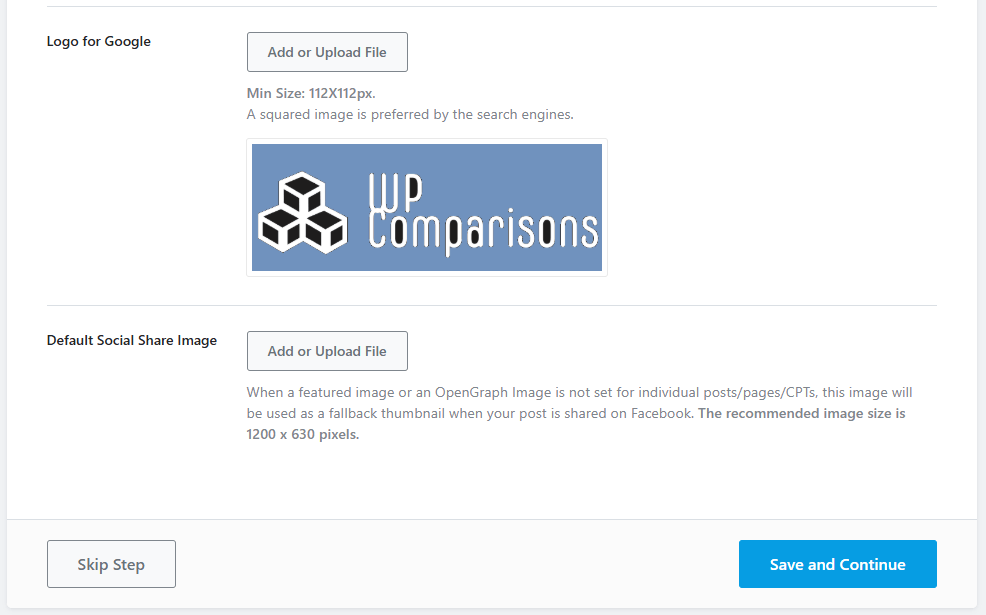
Rank Math will automatically include all the right code on your site, so that Google and the rest of search engines know what your logo is.
The default social share image lets you select a default image that can be used whenever a post is shared on Facebook, which does not have any images.
After completing all the steps, click on ‘Save & Continue’ to move forward to the next step.
Analytics
Rank Math Analytics feature is something you should surely use inside your WordPress dashboard.
It gives you access to all the important numbers in your business/site right inside your WordPress admin.
But first, you have to connect your website with Google services by clicking on the ‘Connect Google Services’ button.

Select the account you have used for Google services or add a new one.
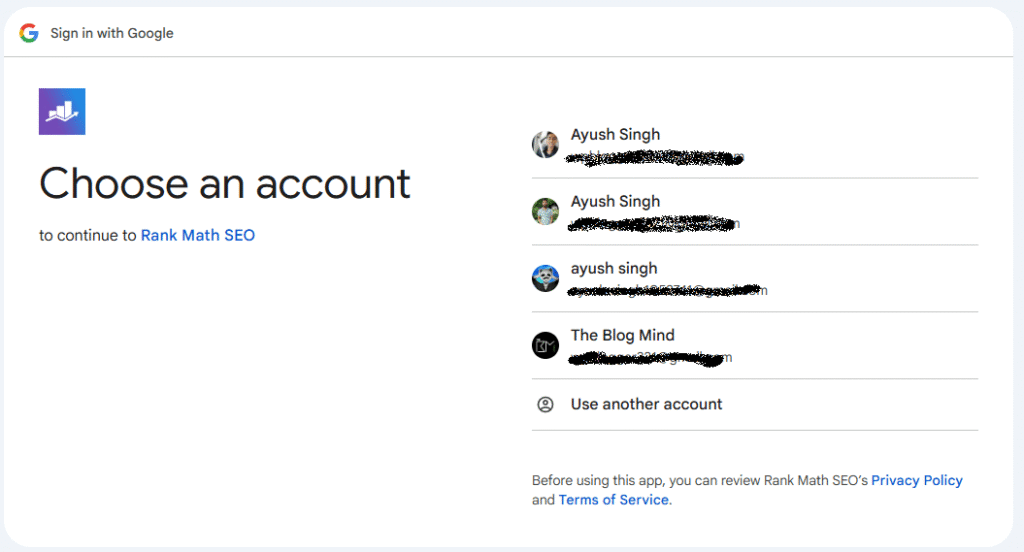
Rank Math asks you for some permissions for this step. You need to give all permissions by clicking the Continue button.
Now, you will land back on the setup wizard with some other options.
Search Console: Choose your website in the dropdown menu and turn the ‘Enable Index Status Tab’ toggle on.
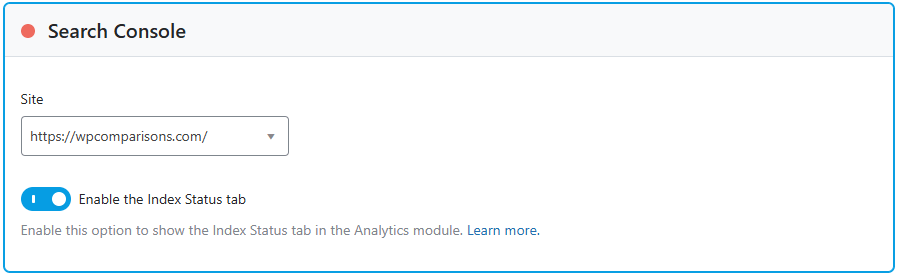
If you are a pro user, you will see a country dropdown next to the site dropdown to target the specific country data.
Analytics: Rank Math also lets you collect your Google Analytics data and show it directly in your WordPress dashboard.
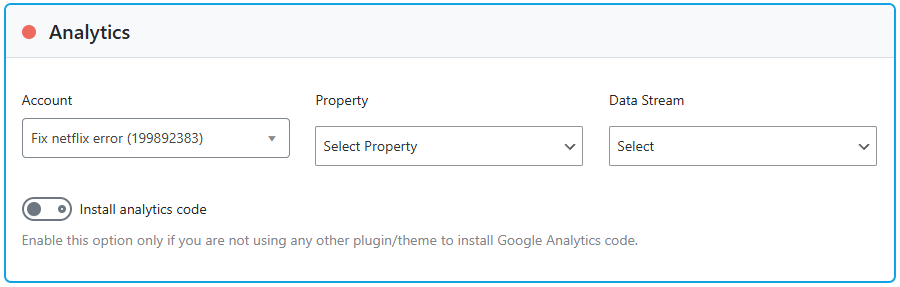
In this section, you will see three options: Account, Property, and Data Stream. Rank Math Pro users will see a Country option as well.
Rank Math can also create a Google Analytics 4 property on your behalf.
Google Adsense: If you are using the Rank Math Pro plugin, then you can use the Google Adsense module.
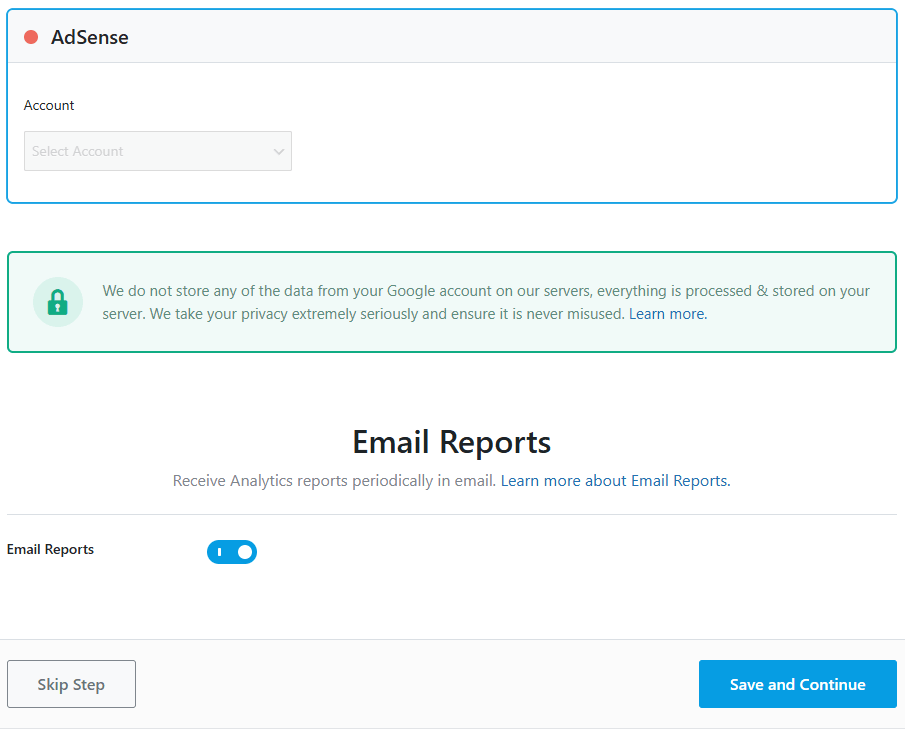
You can select your Adsense account in the dropdown menu, and you will be able to see your Adsense earnings directly in your dashboard.
After configuring all the above steps, the last step is to send email reports. You can toggle it on if you want reports in your email.
Click on ‘Save & Continue’ and move on to the next step.
Sitemap
Thankfully, with Rank Math you get a built-in sitemap generator that complies with Google and will automatically create your website’s sitemap.
It means you won’t need to rely on other plugins just to build your sitemap.
These are all the options you will get in the sitemap section:
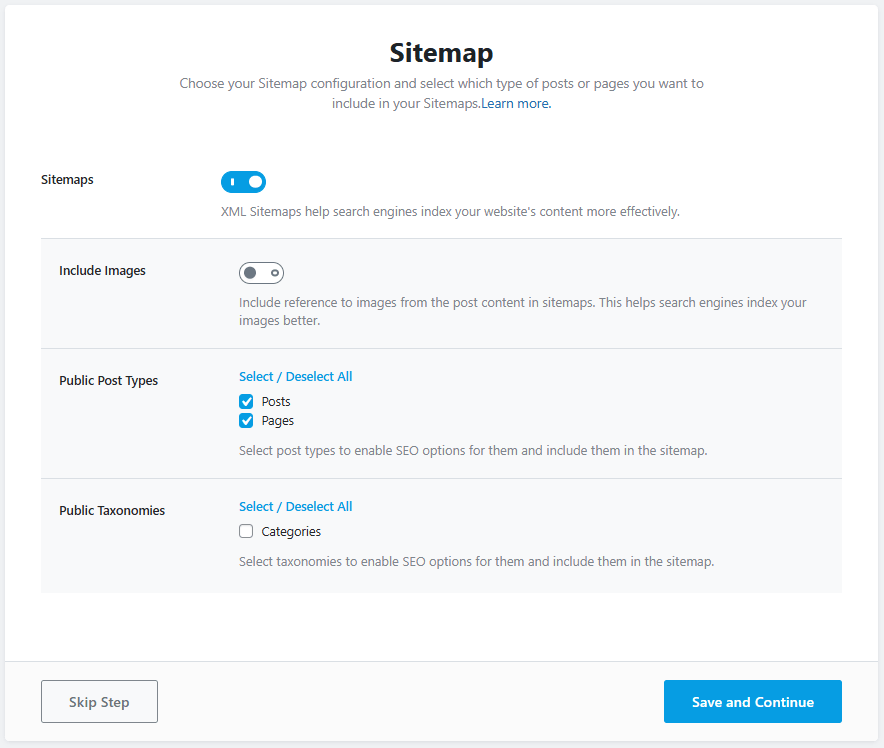
In the Rank Math Pro version, you will get a news sitemap and video sitemap as well. Let’s discuss which sitemap settings you should use.
Sitemap: By default, it’s enabled on your website, which is really important for your website to be shown and indexed on Google.
You have to keep it enabled, as using the external plugin will load your website very slowly.
Include Images: This option lets you choose whether you want your site images included in your sitemap.
Keep the toggle off, as I don’t recommend this feature because it will affect your website indexing in the future when you have lots of images on your website.
Public Post Type: This feature lets you select which post type should be included in the sitemap. The post & pages will be selected by default, and if you are using any custom post type, they will also show up here.
Public taxonomies: You may choose which taxonomies to include in the sitemap using this option. In this section, all of the taxonomies that your website uses will be displayed, and you will need to choose which ones to include in the sitemap.
After completing all the above steps, click on ‘Save & Continue’ to land on the next step.
SEO Tweaks
This step helps you do some simple SEO optimization of your website’s SEO, which is very important.
Here is what it looks like:
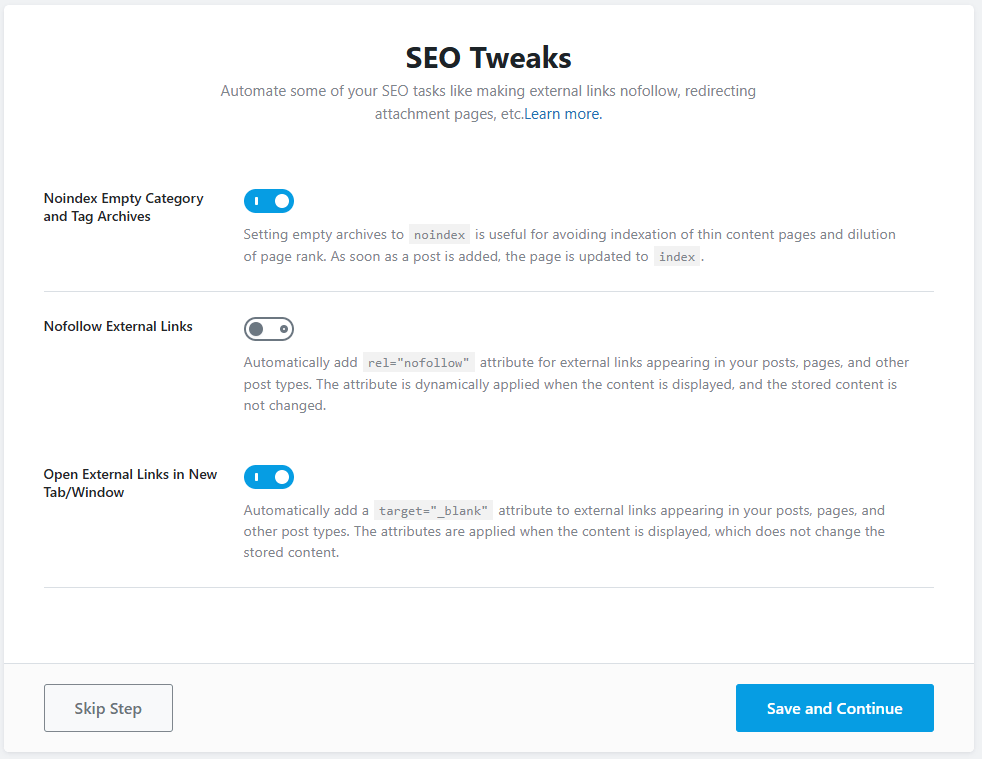
Noindex Empty Category and Tag Archives: In the hopes of using them later, you frequently add a lot of categories and tags to your website, but they are never used. Every category, taxonomy, and tag in WordPress has an archive page, which is a compilation of every post in that taxonomy.
These archive pages are indexed by default, which is acceptable. However, indexing categories and tags with no posts is a waste of both your crawl budget and PageRank.
So, I recommend you enable this setting.
Nofollow External Link: Enabling this setting will make all external links nofollow by default, which is really good.
I recommend you keep this setting disabled.
Open External Links in New Tab/Window: After enabling this setting, users will land on the external page after clicking any link on your website.
Keep the toggle on as it’s best for your website.
After completing all the above steps, click on ‘Save & Continue’ for the final step.
Your Site is Ready
This is the final step if you are using the easy mode of the Rank Math plugin. You just need to toggle it on to enable auto updates of the plugin.
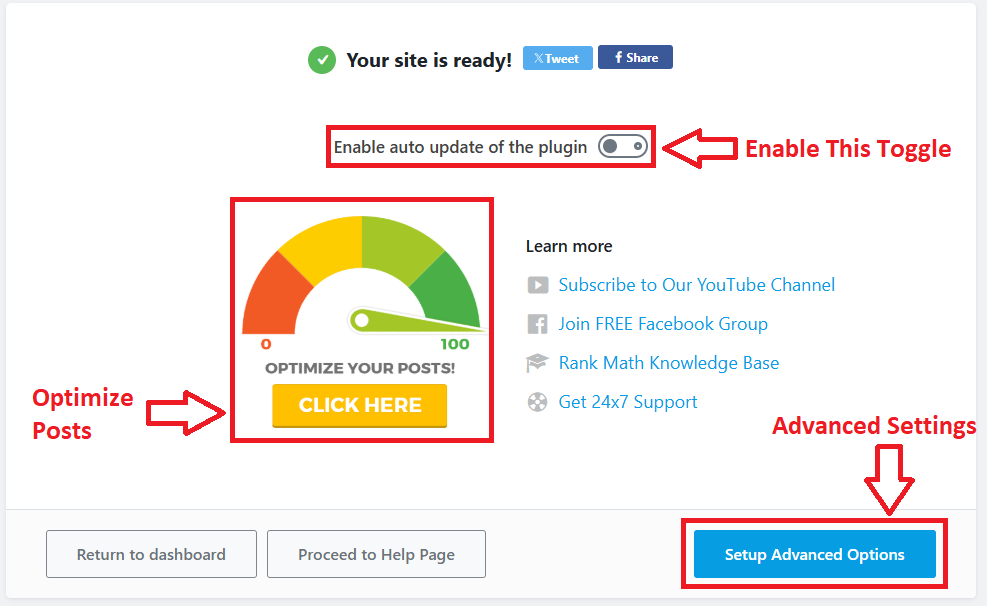
Now, let’s get to the advanced settings of the Rank Math plugin by clicking on the ‘Setup Advanced Options’ button.
Advanced Settings
Once you’ve configured the basic SEO settings, it’s time to explore Rank Math’s Advanced Settings.
These features are designed to help you improve your website’s technical SEO, enhance user experience, and gain more control over how your WordPress site performs in search engines.
Role Manager
One of the most valuable tools is the Role Manager. If multiple users manage your website, Role Manager lets you control which SEO settings each user role can access.
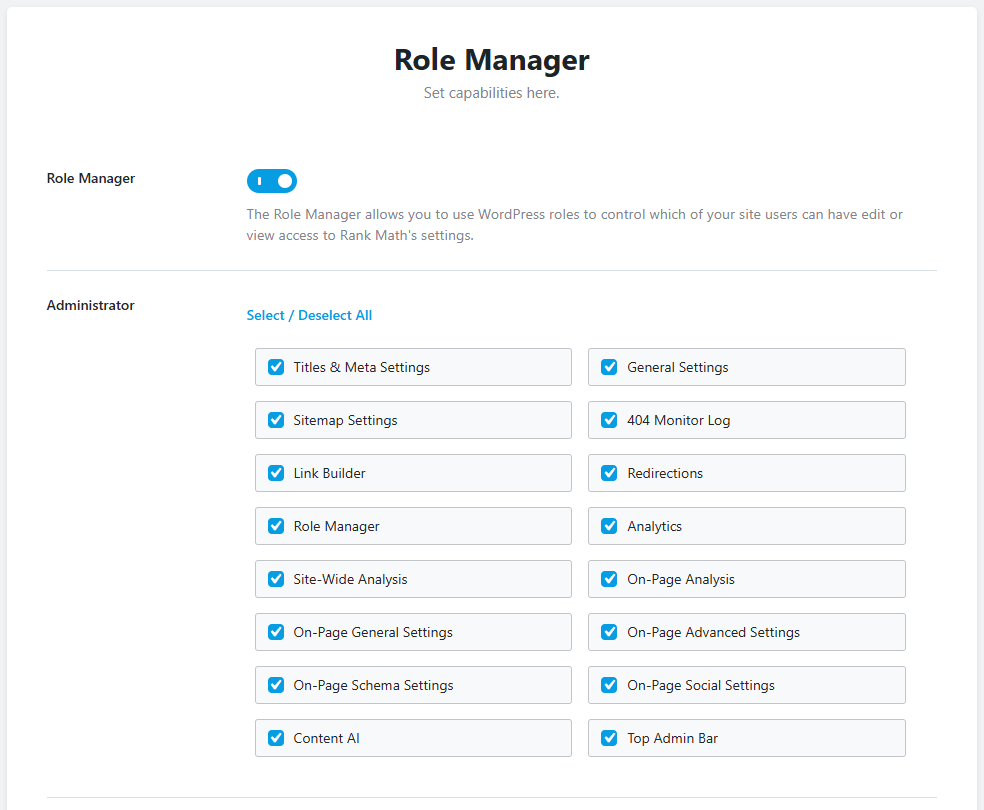
For example, you can allow authors to optimize their posts while restricting access to global SEO settings, reducing the risk of accidental changes.
After configuring this setting, move forward to the next step.
404+ Redirections
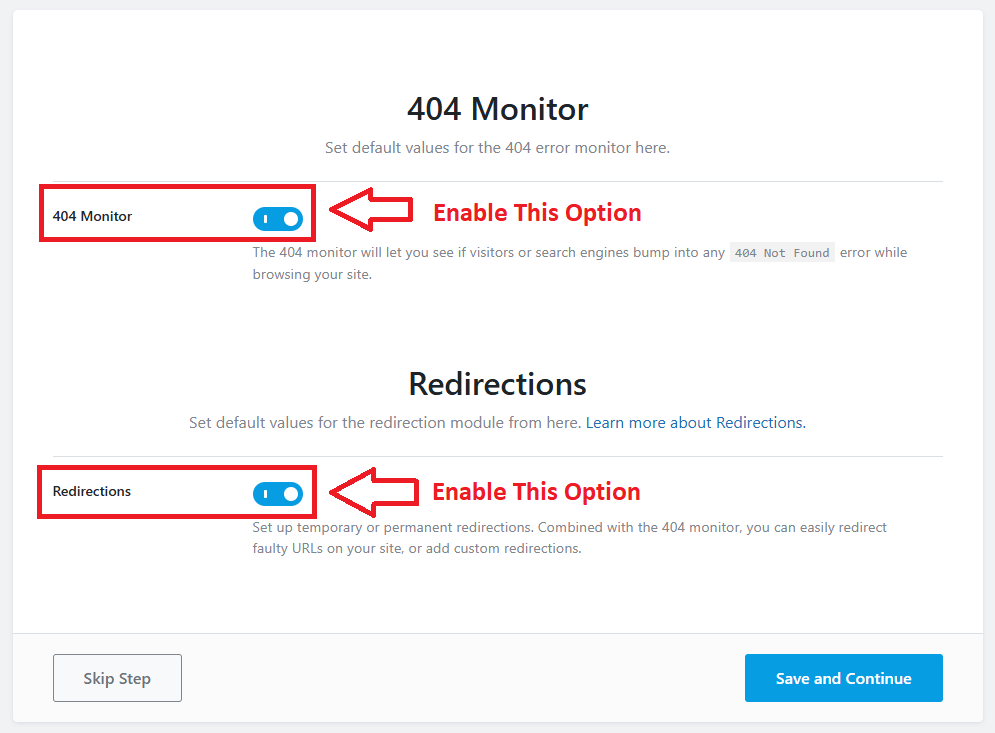
Another essential feature is the 404 Monitor, which records every broken URL visitors or search engine bots encounter.
Regularly checking these errors helps you identify missing pages, fix broken internal links, and improve your website’s crawlability.
I strongly recommend you to enable both of these options to manage your 404 monitor & redirections.
Schema Markup
Schema Markup is another standout feature in the Advanced Settings. Rank Math allows you to add structured data to your posts and pages without writing a single line of code.
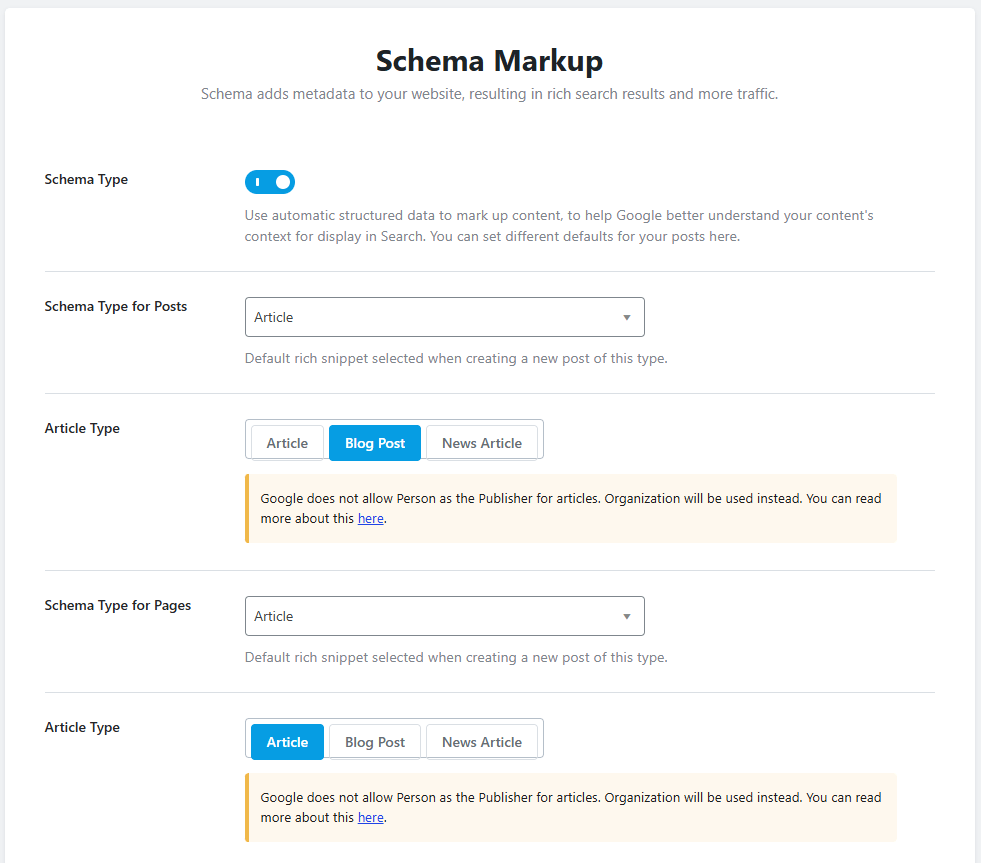
Whether you’re publishing blog posts, products, FAQs, recipes, courses, or local business information, schema helps search engines better understand your content. It increases the chances of earning rich results in Google Search.
Keep the default settings and click on the ‘Save & Continue’ button.
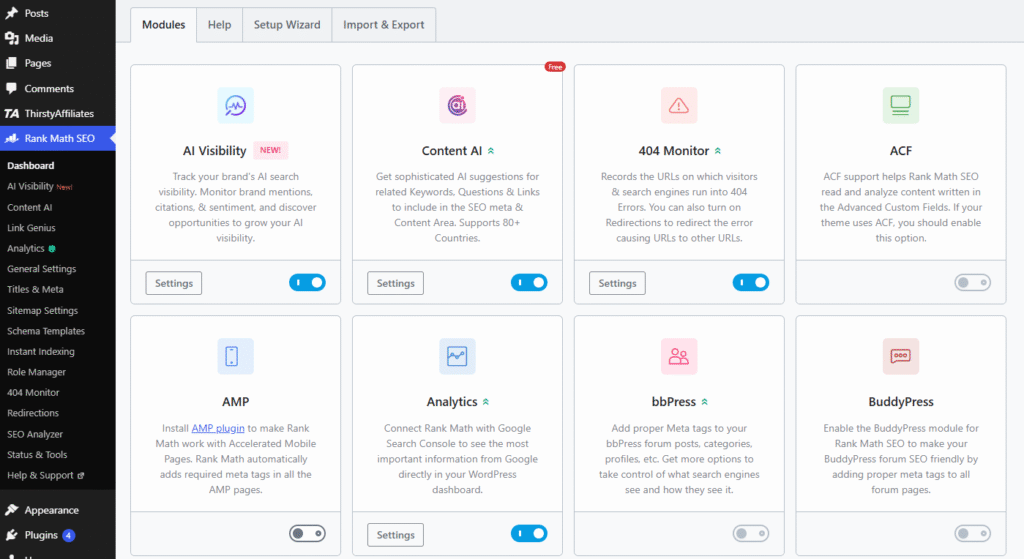
In addition, Rank Math offers several advanced SEO tools, including Image SEO, which automatically adds missing ALT and title attributes to images, Breadcrumbs for improved navigation and internal linking, Link Counter to analyze internal and external links, and SEO Analysis to detect technical SEO issues before they impact your rankings.
Depending on your setup, you can also enable Instant Indexing to help search engines discover new or updated content more quickly.
Overall, Rank Math’s Advanced Settings provide everything you need to manage technical SEO from a single dashboard.
By using these features effectively, you can improve your site’s structure, fix crawl errors, strengthen on-page optimization, and build a solid foundation for higher search engine rankings and a better user experience.
All these best Rank Math SEO settings will help your website rank better on search engines, and after that, everything depends on your content strategy.
Recommended Rank Math Settings (Quick Summary)
Here is a summary of the recommended Rank Math settings for your website or blog. Make sure you have done all the settings as mentioned below.
| Setting | Recommendation |
|---|---|
| Setup Mode | Advanced |
| XML Sitemap | Enable |
| Schema | Enable |
| Breadcrumbs | Enable (if supported by your theme) |
| 404 Monitor | Enable |
| Redirections | Enable |
| Instant Indexing | Use when appropriate |
| Image SEO | Enable selectively |
Common Rank Math Setup Mistakes
If you have done all the Rank Math SEO settings, make sure to not repeat these common Rank Math setup mistakes.
❌ Indexing tags
❌ Using multiple SEO plugins
❌ Wrong schema
❌ Missing social image
❌ Not connecting Search Console
❌ Wrong sitemap settings
FAQs
Can I use Rank Math for free?
Yes, Rank Math is a freemium WordPress SEO plugin, which means it’s available in free and paid versions.
Which setup mode should I choose?
Rank Math advanced mode is best for beginners as it offers more features than easy mode.
Do I need Rank Math Pro?
It depends on your needs; Rank Math Pro offers lots of premium features like Content AI, 40+ AI Tools, AI Visibility, and Powerful Schema Generator, which help you rank better with deeper analysis of your website.
Is Rank Math good for WooCommerce?
Yes, Rank Math offers dedicated WooCommerce store features to optimize WooCommerce pages for search engines by adding required metadata and Product Schema
Conclusion – Rank Math SEO Settings
Setting up Rank Math SEO correctly is one of the best things you can do to improve your WordPress website’s search engine visibility.
By following the steps in this guide, you’ve configured the essential SEO settings, including the setup wizard, schema markup, Search Console integration, title and meta settings, and other advanced features that help your site perform better in search results.
Remember, installing an SEO plugin alone won’t improve your rankings. Consistently publishing high-quality content, optimizing your pages, building relevant backlinks, and providing a great user experience are just as important.
As your website grows, make it a habit to review your SEO settings regularly, monitor your performance in Google Search Console, and keep Rank Math updated to take advantage of new features and improvements.
If you’re looking to get even more from Rank Math, be sure to check out our detailed Rank Math Free vs Pro comparison and Rank Math Pricing guide.