

Are you looking for the solutions to DF A8’h Default error in BSNL 2G and 3G sims on keypad phones as well as smartphones?
DF A8’H Default Error is a very irritating error in any phone.
It occurs with your SIM card as a result of a technical issue with the device. This is a really annoying error because you have tried several ways to eliminate it, but it still occurs.
BSNL 2G, 3G SIM can repeatedly display DF A8’H Default Error and also display the Cancel or Ok option.
When this error occurs, you can’t make calls, receive calls, or perform any work on your mobile. It occurs due to a hardware fault in the SIM card chip.
Follow the below steps to fix Df A8’H Default Error:
Solution 1: Restart Your Phone
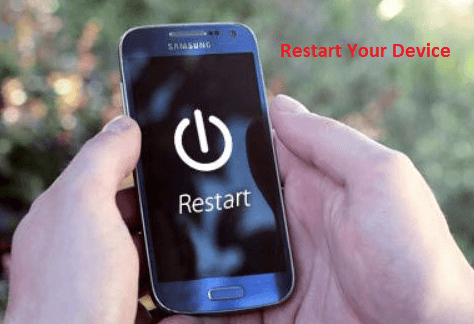
Sometimes, restarting your phone can fix many problems. So, after getting the Df A8’H Default Error, the first thing you need to do is restart your phone and see if the error is fixed.
If your error still persists, then go to the next solution.
Solution 2: Change your SIM Slot
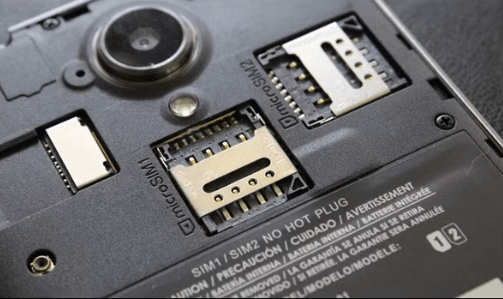
If your phone has two sim slots then put your sim in another slot. Follow these steps:
- Switch off your phone
- Insert your sim into another slot.
- Switch on your phone and see if your error exists or not.
Solution 3: Replace your SIM Card
If none of the above solutions work for you, then only replacing the existing SIM with a duplicate SIM can be overcome.
1. Go to the nearest BSNL CSC center.
2. Apply for a duplicate SIM along with a photocopy of your photo proof and address proof.
This is the most effective method to solve the DF A8’H Default Error problem. And you can try the alternative method mentioned below:
1. Power on the phone with a battery
2. Attach the USB cable
3. Select com from mobile
4. Install the driver from the MasterTool driver folder(C: Program FilesMasterBoxDriver)
5. Use IMEI at the option
If IMEI on the phone is not switching on…
1) Disconnect mobile from master tools box and the minims master tools window
2) Power on with a battery
3) Attach the USB cable
4) Select the option ” Comport ” in the handset
5) When asking for drive, give a path from C: Program FilesMasterBoxDriverMediaTek
6) Now roster master tools window
7) Click on IMEI at meta Follow this instruction no need to power key press hope you will get a successful result.
These are some methods to solve DF A8’H Default Error, I hope they will help you to resolve your problem. If you solve this problem in another way, you can tell us in the comments section.






Problem solved.. thank you so much it helped..
Problem not solved
Problem not solved
I have tried to switch off and restart but still it persosts